> ## Documentation Index
> Fetch the complete documentation index at: https://chainlit-5-laura-eng-1066-landing-page.mintlify.site/llms.txt
> Use this file to discover all available pages before exploring further.
# Thread
A Thread represents a group of interactions between a user and an AI app. It can be, for example, a conversation between a human and one or several assistants, or an agent generating a document piece by piece from a user input.
A Thread is composed of [Steps](/concepts/step). A Step can be a message, or an intermediate AI step like an LLM call.
## Log a Thread
```python Python
import os
import time
from literalai import LiteralClient
client = LiteralClient(api_key=os.getenv("LITERAL_API_KEY"))
@client.step(type="run")
def my_assistant(input: str):
# Implement your assistant logic here
time.sleep(1)
response = "My assistant response"
client.message(content=response, type="assistant_message", name="Assistant")
return response
def main():
# You can also continue a thread by passing the thread id
with client.thread(name="Thread Example") as thread:
print(thread.id)
user_query = "Hello World"
client.message(content=user_query, type="user_message", name="User")
my_assistant(user_query)
# Let's say the user has a follow up question
follow_up_query = "Follow up!"
client.message(content=follow_up_query, type="user_message", name="User")
my_assistant(user_query)
main()
# Network requests by the SDK are performed asynchronously.
# Invoke flush_and_stop() to guarantee the completion of all requests prior to the process termination.
# WARNING: If you run a continuous server, you should not use this method.
client.flush_and_stop()
```
```typescript TypeScript
import { LiteralClient, Thread } from "@literalai/client";
const client = new LiteralClient(process.env["LITERAL_API_KEY"]);
// The Assistant could have intermediary steps
async function myAssistant(thread: Thread, query: string) {
const run = thread.step({
type: "run",
name: "My Assistant Run",
input: { content: query },
});
// Implement your assistant logic here
await new Promise((r) => setTimeout(r, 1000));
const response = { content: "My assistant response" };
run.output = response;
await run.send();
return response;
}
async function main() {
const participantId = await client.api.getOrCreateUser("John Doe");
// You can also continue a thread by passing the thread id
const thread = await client
.thread({ name: "Thread Example", participantId: participantId })
.upsert();
console.log(thread.id);
const userQuery = "Hello World";
await thread
.step({
type: "user_message",
name: "User",
output: { content: userQuery },
})
.send();
const assistantResponse = await myAssistant(thread, userQuery);
await thread
.step({
type: "assistant_message",
name: "Assistant",
output: assistantResponse,
})
.send();
const followUpQuery = "Follow up!";
await thread
.step({
type: "user_message",
name: "User",
output: { content: followUpQuery },
})
.send();
const followUpResponse = await myAssistant(thread, followUpQuery);
await thread
.step({
type: "assistant_message",
name: "Assistant",
output: followUpResponse,
})
.send();
}
main()
.then(() => process.exit(0))
.catch((error) => console.error(error));
```
## Visualize the Thread on Literal
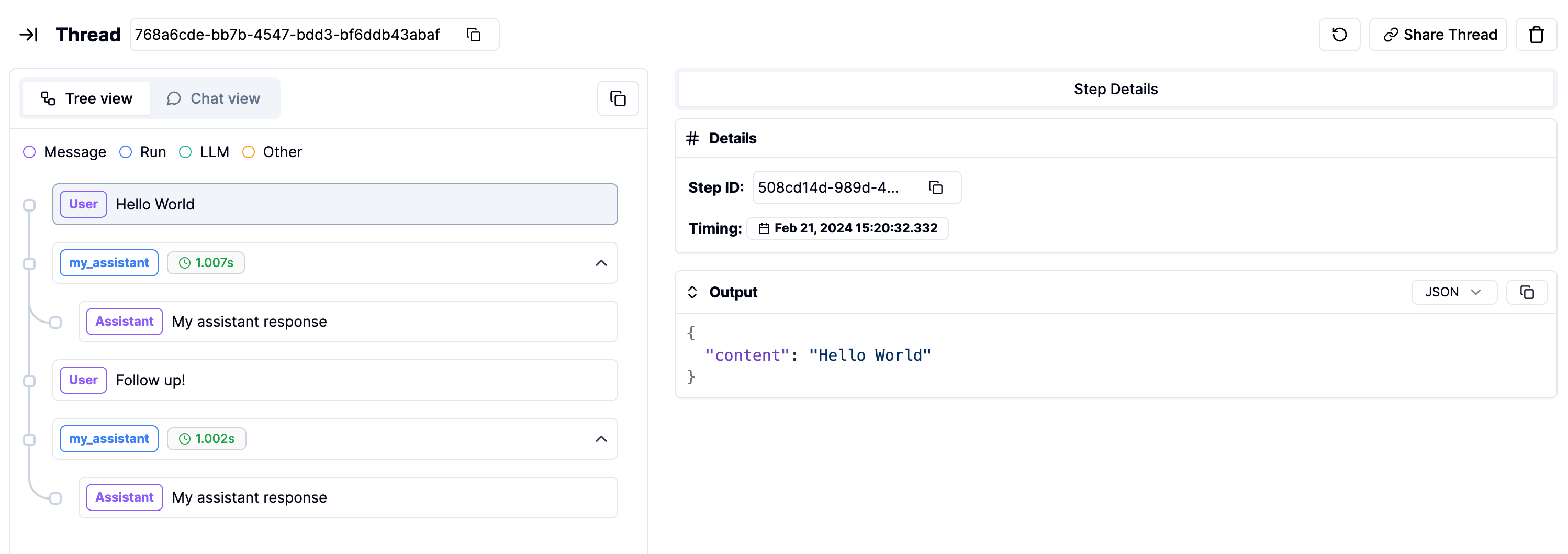
Navigate to the `Threads` page on the platform to see the thread you just created.
 ## Tags
You can add tags to a Thread, [Step](/concepts/step) or Generation. Similar to Github labels, you can use tags to filter data both from the Literal UI and the clients. Tags are shared between units (Threads, Steps and Generations).
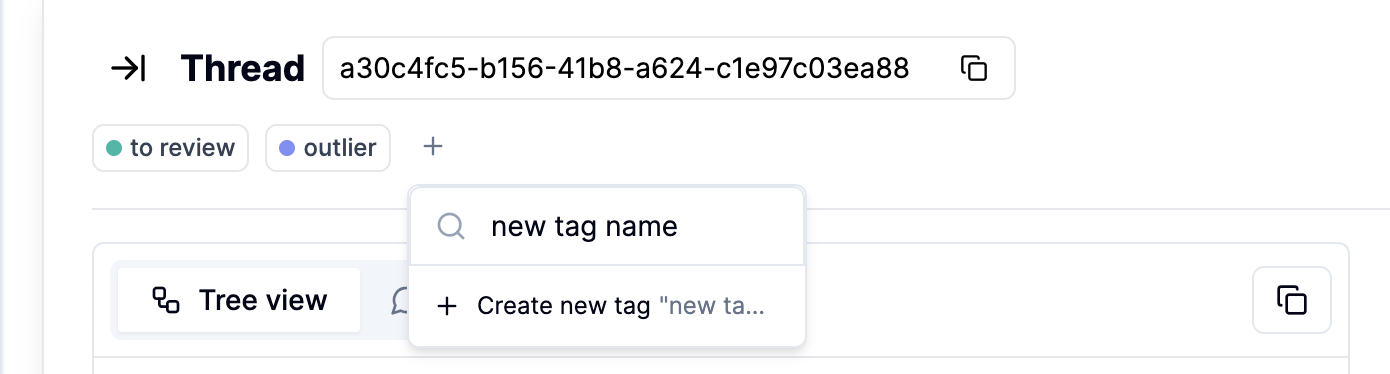
To add a tag to a Thread or Generation, open the specific item and add the tag on the top of the window. Here, you can also add new tags. Adding tags to Steps is possible in the Step itself.
## Tags
You can add tags to a Thread, [Step](/concepts/step) or Generation. Similar to Github labels, you can use tags to filter data both from the Literal UI and the clients. Tags are shared between units (Threads, Steps and Generations).
To add a tag to a Thread or Generation, open the specific item and add the tag on the top of the window. Here, you can also add new tags. Adding tags to Steps is possible in the Step itself.
 **Using the SDKs:**
When you add a Tag that doesn't exist yet, a new Tag will be automatically created.
Note: When you update the Tags in using `update_thread()` (Python) or `upsertThread()` (TypeScript), you replace all previous assigned tags to this Thread.
```python Python
import os
from literalai import LiteralClient
client = LiteralClient(api_key=os.getenv("LITERAL_API_KEY"))
async def add_tags():
updated_thread = await client.api.update_thread(
id="",
tags=["outlier", "to review"], # add tags here
)
asyncio.run(add_tags())
# Network requests by the SDK are performed asynchronously.
# Invoke flush_and_stop() to guarantee the completion of all requests prior to the process termination.
# WARNING: If you run a continuous server, you should not use this method.
client.flush_and_stop()
```
```typescript TypeScript
import { LiteralClient, Thread } from "@literalai/client";
const client = new LiteralClient(process.env["LITERAL_API_KEY"]);
const thread = await client.api.upsertThread({
threadId: "",
tags: ["outlier", "to review"]});
```
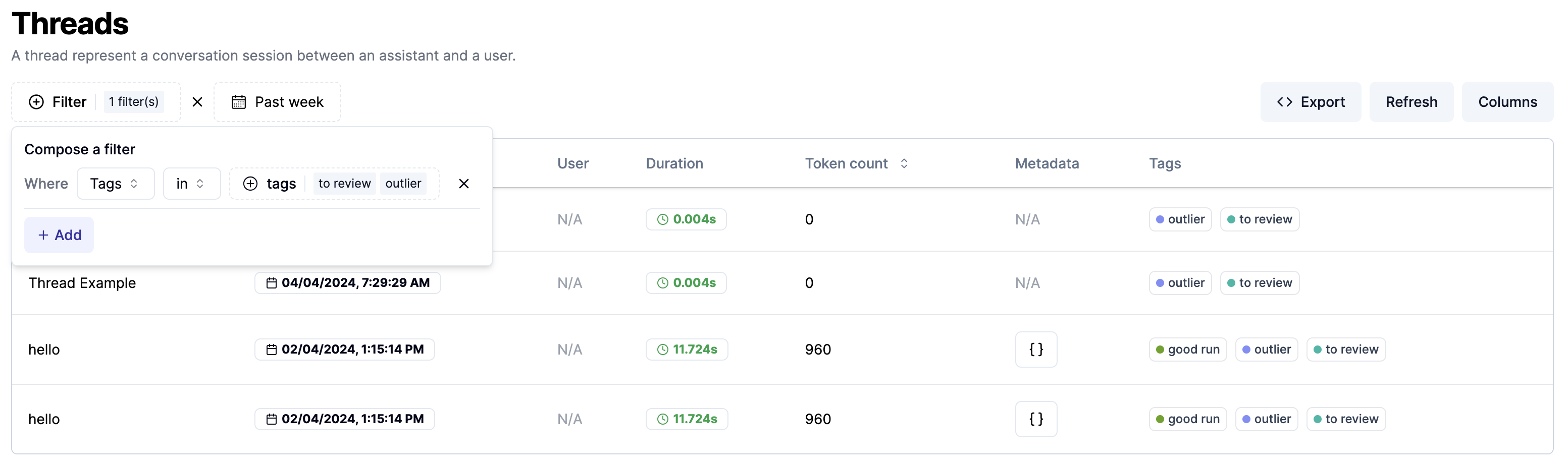
Next, you can filter Threads or Generations by tags.
**Using the SDKs:**
When you add a Tag that doesn't exist yet, a new Tag will be automatically created.
Note: When you update the Tags in using `update_thread()` (Python) or `upsertThread()` (TypeScript), you replace all previous assigned tags to this Thread.
```python Python
import os
from literalai import LiteralClient
client = LiteralClient(api_key=os.getenv("LITERAL_API_KEY"))
async def add_tags():
updated_thread = await client.api.update_thread(
id="",
tags=["outlier", "to review"], # add tags here
)
asyncio.run(add_tags())
# Network requests by the SDK are performed asynchronously.
# Invoke flush_and_stop() to guarantee the completion of all requests prior to the process termination.
# WARNING: If you run a continuous server, you should not use this method.
client.flush_and_stop()
```
```typescript TypeScript
import { LiteralClient, Thread } from "@literalai/client";
const client = new LiteralClient(process.env["LITERAL_API_KEY"]);
const thread = await client.api.upsertThread({
threadId: "",
tags: ["outlier", "to review"]});
```
Next, you can filter Threads or Generations by tags.
 Using the SDKs:
```python Python
import os
import asyncio
from literalai import LiteralClient
client = LiteralClient(api_key=os.getenv("LITERAL_API_KEY"))
async def get_filtered_threads():
filtered_threads = await client.api.list_threads(
filters = [{
"operator": "in",
"field": "tags",
"value": ["outlier"],
}]
)
return filtered_threads
filtered_threads = asyncio.run(get_filtered_threads())
print(filtered_threads.pageInfo)
for thread in filtered_threads.data:
print(thread.to_dict())
# Network requests by the SDK are performed asynchronously.
# Invoke flush_and_stop() to guarantee the completion of all requests prior to the process termination.
# WARNING: If you run a continuous server, you should not use this method.
client.flush_and_stop()
```
```typescript TypeScript
import { LiteralClient, Thread } from "@literalai/client";
const client = new LiteralClient(process.env["LITERAL_API_KEY"]);
const filtered_threads = await client.api
.getThreads({
filters: [{
operator: "in",
field: "tags",
value: ["outlier"],
}]
});
```
Using the SDKs:
```python Python
import os
import asyncio
from literalai import LiteralClient
client = LiteralClient(api_key=os.getenv("LITERAL_API_KEY"))
async def get_filtered_threads():
filtered_threads = await client.api.list_threads(
filters = [{
"operator": "in",
"field": "tags",
"value": ["outlier"],
}]
)
return filtered_threads
filtered_threads = asyncio.run(get_filtered_threads())
print(filtered_threads.pageInfo)
for thread in filtered_threads.data:
print(thread.to_dict())
# Network requests by the SDK are performed asynchronously.
# Invoke flush_and_stop() to guarantee the completion of all requests prior to the process termination.
# WARNING: If you run a continuous server, you should not use this method.
client.flush_and_stop()
```
```typescript TypeScript
import { LiteralClient, Thread } from "@literalai/client";
const client = new LiteralClient(process.env["LITERAL_API_KEY"]);
const filtered_threads = await client.api
.getThreads({
filters: [{
operator: "in",
field: "tags",
value: ["outlier"],
}]
});
```